
Getting started with MacWatcher
MacWatcher is a menubar app for macOS 13 or later that captures tamper-evidence photos when someone disturbs your Mac while you’re away.
Install
Section titled “Install”- Download the DMG from your purchase email or the Amrah Studio website.
- Open the DMG and drag MacWatcher to Applications.
- Launch it. MacWatcher lives in the menubar (there’s no Dock icon by default).
The build is signed and notarized by Apple, so it opens without security warnings.
Grant camera access
Section titled “Grant camera access”MacWatcher needs the camera to capture evidence. On first arm, macOS prompts for Camera access — click Allow. You can change this any time in System Settings → Privacy & Security → Camera.
Arm a watch
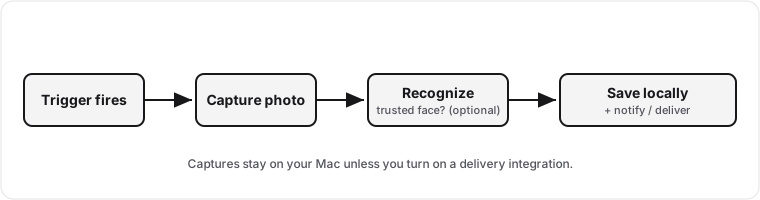
Section titled “Arm a watch”Open the menubar popover and click Arm. While armed, MacWatcher watches for triggers — events that suggest tampering — and captures a burst of photos when one fires. Typical triggers include lid open/close, wake from sleep, and screen unlock; you can tune these under Detectors.
Click Disarm when you’re back.
Where captures go
Section titled “Where captures go”Photos and an activity log are written locally to your capture folder (set under Capture). They never leave your Mac unless you turn on a delivery integration (see below).
Optional: delivery integrations
Section titled “Optional: delivery integrations”Under Delivery you can forward capture alerts to a destination you control — for example a webhook or a messaging service. These are off by default; when on, data goes only to the endpoint you configure, never to Amrah Studio.
Optional: keep watching after you quit
Section titled “Optional: keep watching after you quit”By default MacWatcher watches only while it’s running. Turn on Run in background (General) to hand off to a background service that keeps watching after you quit. You’ll be asked to grant the background service its own camera permission once.
Change the appearance
Section titled “Change the appearance”MacWatcher follows your macOS appearance by default.
To choose a specific look:
- Open MacWatcher > Settings.
- Select General.
- Under App, set Appearance to System, Light, or Dark.
The change applies immediately to the popover and open MacWatcher windows.
Next steps
Section titled “Next steps”- Set up Trusted Faces so MacWatcher stays quiet when it’s you.
- Activate your license.