
Trusted Faces
Trusted Faces is an optional, on-device feature: when MacWatcher recognizes an enrolled face, it suppresses the alert for that capture. The photo is still saved to your local log — recognition only silences the notification/alarm, it never skips the evidence.
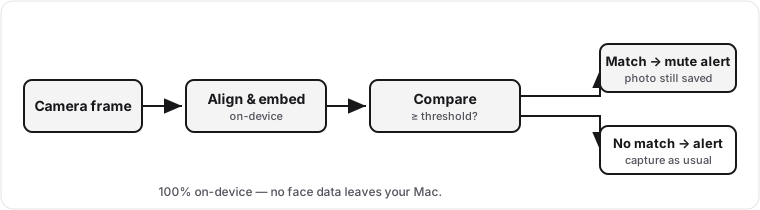
Everything here runs on your Mac. No face data is ever uploaded.
Enable and enroll
Section titled “Enable and enroll”- Open Settings → Trusted Faces.
- Turn on Recognize trusted faces.
- Click Add a trusted face and follow the on-screen guide — look at the camera and move your head slightly so it captures a range of angles.
- Save. You can enroll more than one person (for example, household members).
Enroll a good spread of angles and lighting for the most reliable recognition.
Tuning recognition
Section titled “Tuning recognition”- Threshold — how strict the match must be. Higher is stricter (fewer false matches, but it may occasionally miss you). MacWatcher ships a sensible default calibrated for the built-in model; only change it if recognition is too strict or too loose for your setup.
- Confirmation frames — a face must match across several consecutive frames before it’s trusted, which prevents a single fluke frame from trusting a stranger.
Privacy
Section titled “Privacy”Face recognition is 100% on-device. Enrolled face data and the model stay in the app’s local storage; nothing about your face is sent to Amrah Studio or anyone else.